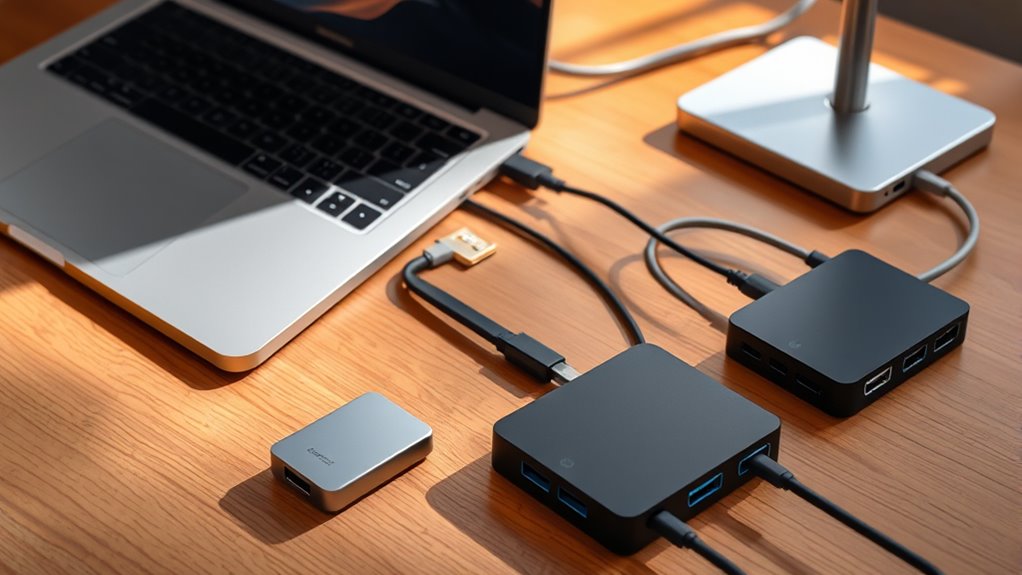

For most MacBook owners, I’d start with the Anker 7-in-1 USB-C Hub: its 4K at 60Hz HDMI support and broad everyday port mix make it a well-rounded pick. The Belkin 10Gbps Multiport Hub stands out for faster data transfers, while the Anker 7-in-2 Mac Dock is built for MacBooks that benefit from a dual-connector design. Choosing among these multiport USB-C hubs for MacBook means balancing display support, the right mix of USB-A and USB-C ports, charging passthrough, and how much space the hub takes up. Port counts alone can be misleading: speed, layout, and compatibility matter just as much. Read on for the full comparison, selection criteria, and advice for matching a hub to your setup.

Get kitchen staples and gadgets delivered free with Prime
- Fast, free delivery on millions of items
- Prime Video, Amazon Music and more included
- Member-only deals all year
Key Takeaways
- Display support separates useful desk hubs from basic adapters: several picks specify 4K at 60Hz, while others list 4K HDMI without stating the same refresh rate.
- More ports do not automatically mean more speed: the 10-in-1 model offers six USB ports, but Belkin and ACASIS call out 10Gbps data performance for buyers focused on transfers.
- MacBook-specific designs trade broad fit for a tailored connection: the two-port Anker dock and the 8-in-2 adapter are designed around MacBook-side connections, unlike universal cable-connected hubs.
- USB-A needs remain common: BENFEI, ACASIS, and several Anker options prioritize USB-A connections, while the Acer 5-in-1 is unusual for offering four USB-C data ports.
- Card readers and charging passthrough serve different workflows: MOKiN, Hiearcool, and other 7-in-1 options suit mixed everyday use, while buyers should verify that a hub’s listed ports match their actual devices and power needs.
| MOKiN USB-C Hub HDMI Adapter, 7-in-1 Dongle |  | Best for Photo Workflows | Port layout: 7-in-1: HDMI, SD/TF, USB-C data, USB-C Power Delivery, and two USB 3.0 ports | HDMI: 4K at 60Hz | Data transfer rate: Up to 5 Gbps | VIEW ON AMAZON | See Our Full Breakdown |
| BENFEI USB-C Hub 5-in-1 with 4K HDMI, 100W Power Delivery, and 3 USB-A Ports |  | Best for USB-A Peripherals | Port layout: 5-in-1: HDMI, USB-C Power Delivery, and three USB-A ports | HDMI: 4K at 30Hz | USB data speed: Up to 10 Gbps | VIEW ON AMAZON | See Our Full Breakdown |
| Acer USB C Hub 7-in-1 Multi-Port Adapter for Laptop and Mac Devices |  | Best Mainstream 7-Port Pick | Port count: 7 | HDMI: 4K output; listed maximum refresh rate is 30Hz | Data transfer rate: Up to 5 Gbps | VIEW ON AMAZON | See Our Full Breakdown |
| UGREEN USB C Hub 5-in-1 Multiport USB Adapter with 4K HDMI and 100W Power Delivery | 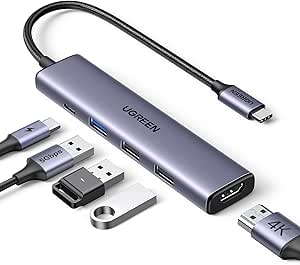 | Best Simple Apple-Device Expansion | Port count: 5 | Interfaces: HDMI, USB 2.0, USB 3.0, and USB Type-C | Data transfer rate: Up to 5 Gbps | VIEW ON AMAZON | See Our Full Breakdown |
| USB C Hub Adapter for MacBook Pro and Air (2016-2026), 8-in-2 Multiport Dock |  | Best MacBook-Focused Dock | Port count: 8-in-2 | Interfaces: HDMI, Thunderbolt 3, USB-C, USB 3.0, USB 2.0, SD, and MicroSD | HDMI: 4K at 60Hz | VIEW ON AMAZON | See Our Full Breakdown |
| 10-in-1 USB-C Hub Multiport Adapter with 4K@60Hz HDMI, SD/TF Card Reader, 100W PD, and 6 USB Ports |  | Best for Maximum Port Variety | Total ports: 10 | HDMI: Up to 4K@60Hz; also supports 2K@120Hz and 1080p | USB ports: 3 × USB 3.0 (5Gbps), 2 × USB 2.0 (480Mbps), 1 × USB-C data | VIEW ON AMAZON | See Our Full Breakdown |
| Anker USB C Hub, 7-in-1 Multi-Port USB Adapter, 4K@60Hz USBC to HDMI Splitter |  | Best Compact Everyday Pick | Number of ports: 7 | HDMI: 4K@60Hz | USB-A: 2 × USB 3.0 | VIEW ON AMAZON | See Our Full Breakdown |
| Acer 6-in-1 USB C Hub 10Gbps, USB C to HDMI Adapter 4K@60Hz |  | Best for Faster Data Connections | Number of ports: 6 | Total USB ports: 4 | Data transfer rate: Up to 10Gbps | VIEW ON AMAZON | See Our Full Breakdown |
| Anker USB C Hub, 5-in-1 USB-C to HDMI Splitter with 4K Display | 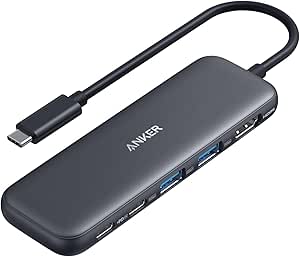 | Best for a Simple One-Display Setup | Number of ports: 5 | HDMI: Up to 4K@30Hz | USB-A: 2 ports, up to 5Gbps | VIEW ON AMAZON | See Our Full Breakdown |
| Hiearcool 7-in-1 USB C Hub, Space Gray | 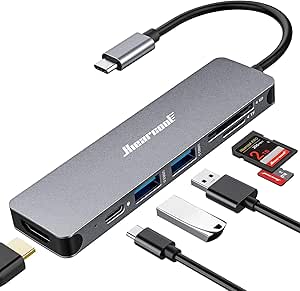 | Best for Travel and Card Transfers | Number of ports: 7 | Total USB ports: 2 | HDMI: 4K support; refresh rate not specified | VIEW ON AMAZON | See Our Full Breakdown |
| Acer 5-in-1 USB-C Hub with 4x USB-C 3.2 Gen 2 Ports and 100W Power Delivery |  | Best for USB-C-Only Peripherals | Data ports: 4 x USB-C 3.2 Gen 2 | Power port: 1 x USB-C PD | Data rate: Up to 10Gbps, shared across data ports | VIEW ON AMAZON | See Our Full Breakdown |
| Belkin 100W 10Gbps Multiport USB-C Hub Adapter for Laptop, iPad, PC, & More |  | Best for a Lightweight General-Purpose Kit | Port count: 4 | Data transfer speed: Up to 10Gbps | Power Delivery: Up to 100W pass-through | VIEW ON AMAZON | See Our Full Breakdown |
| ACASIS USB-C Hub 10 Gbps with 4K 60 Hz HDMI, 3 USB-A 3.1, USB-C 3.1 and 100W PD |  | Best for a Single External Display | Total ports: 6 | HDMI: 1 x HDMI, up to 4K at 60Hz | USB-A: 3 x USB 3.1 | VIEW ON AMAZON | See Our Full Breakdown |
| Anker USB-C Hub, 5-in-1 USB Hub for Laptops, 4K HDMI Multiport Adapter |  | Best for Basic HDMI and USB-A Needs | Port layout: 1 x HDMI, 3 x USB-A, 1 x USB-C Power Delivery input | USB 3.0 data rate: Up to 5Gbps | USB 2.0 data rate: Up to 480Mbps | VIEW ON AMAZON | See Our Full Breakdown |
| Anker USB-C Hub for MacBook, 7-in-2 Mac Dock with 4K@60Hz HDMI |  | Best MacBook Dock for Ports and Card Readers | Layout: 7-in-2 MacBook hub | Connections: Multifunction USB-C, USB-C data, 2 x USB-A, HDMI, SD, microSD | HDMI: Up to 4K at 60Hz | VIEW ON AMAZON | See Our Full Breakdown |
| usbc hubs multiport for macbook | HDMI | Power Delivery | Compatibility |
|---|---|---|---|
| MOKiN USB-C Hub HDMI Adapter | 4K at 60Hz | Up to 100W input; up to 87W charging output | Mac OS 14 Sonoma and Windows 10 listed |
| BENFEI USB-C Hub 5-in-1 with 4 | 4K at 30Hz | 100W input; up to 90W pass-through charging | MacBook Pro/Air, iPad Pro, iMac, and listed Windows and mobile devices |
| Acer USB C Hub 7-in-1 Multi-Po | 4K output; listed maximum refresh rate is 30Hz | Up to 100W | — |
| UGREEN USB C Hub 5-in-1 Multip | — | 100W; requires a USB-C power source for full charging | — |
| USB C Hub Adapter for MacBook | 4K at 60Hz | Up to 100W pass-through charging | MacBook Air 2018–2026 and MacBook Pro 2016–2026, as listed |
| 10-in-1 USB-C Hub Multiport Ad | Up to 4K@60Hz; also supports 2K@120Hz and 1080p | 100W PD passthrough | — |
| Anker USB C Hub | 4K@60Hz | Up to 85W charging | — |
| Acer 6-in-1 USB C Hub 10Gbps | 4K@60Hz | Up to 100W; external power adapter needed for full charging | — |
| Anker USB C Hub | Up to 4K@30Hz | — | MacBook, Windows 10/11, ChromeOS, Thunderbolt, USB4 |
| Hiearcool 7-in-1 USB C Hub | 4K support; refresh rate not specified | Up to 100W | — |
| Acer 5-in-1 USB-C Hub with 4x | — | Up to 100W | MacBook, iPad, iPhone, Surface, Dell XPS, Chromebook, Android, Windows, Linux |
| Belkin 100W 10Gbps Multiport U | — | Up to 100W pass-through | Mac, Windows, Chrome OS |
| ACASIS USB-C Hub 10 Gbps with | 1 x HDMI, up to 4K at 60Hz | — | — |
| Anker USB-C Hub | Up to 4K at 30Hz | 90W pass-through; 100W input with 10W reserved | Windows, macOS, ChromeOS; not Linux |
| Anker USB-C Hub for MacBook | Up to 4K at 60Hz | — | macOS MacBook models; not compatible with MacBook Neo |
More Details on Our Top Picks
MOKiN USB-C Hub HDMI Adapter, 7-in-1 Dongle
The MOKiN 7-in-1 is a strong fit for MacBook owners who regularly move photos or footage from cards while keeping a display and everyday peripherals connected. Its SD/TF readers, two USB-A ports, data-capable USB-C port, and HDMI output offer more varied connections than the BENFEI 5-in-1, which focuses on USB-A accessories and charging. The MOKiN also specifies 4K at 60Hz, a smoother match for compatible monitors than the BENFEI’s 4K at 30Hz. The tradeoff is charging: its 100W input rating delivers up to 87W to the laptop, and it is not suited to powering multiple external drives at once. Skip it if you need an Apple USB SuperDrive or a hub built around high-power storage.
Pros:- SD and TF readers simplify card-based photo and video transfers.
- HDMI supports 4K at 60Hz for compatible displays.
- Includes two USB-A ports and a separate USB-C data port.
- Compact aluminum body weighs 2.4 ounces.
Cons:- Laptop charging output is limited to 87W despite the 100W PD input rating.
- Power limitations restrict use to one HDD or SSD at a time.
- Does not support Apple USB SuperDrive.
Best for: MacBook photographers and mobile editors who need card readers, USB peripherals, and a smooth external display from one compact hub.
Not ideal for: Buyers who need to run an Apple USB SuperDrive, power multiple external drives, or receive the full 100W as laptop charging output.
- Port layout:7-in-1: HDMI, SD/TF, USB-C data, USB-C Power Delivery, and two USB 3.0 ports
- HDMI:4K at 60Hz
- Data transfer rate:Up to 5 Gbps
- Power Delivery:Up to 100W input; up to 87W charging output
- Compatibility:Mac OS 14 Sonoma and Windows 10 listed
- Material and color:Aluminum, gray
- Dimensions and weight:4.45 x 1.18 x 0.43 inches; 2.4 ounces
- Warranty:1 year
Our verdict“Choose the MOKiN if card-reader access and 4K at 60Hz matter more than full-power charging or support for several external drives.”
BENFEI USB-C Hub 5-in-1 with 4K HDMI, 100W Power Delivery, and 3 USB-A Ports
For a MacBook setup built around USB-A accessories, the BENFEI 5-in-1 keeps the layout simple: three USB-A ports, HDMI, and a dedicated charging input. Its stated up to 10 Gbps data speed is higher than the 5 Gbps listed for the MOKiN and UGREEN hubs, which can help when compatible devices and cables are involved. The 20 cm woven cable also gives it more placement flexibility than a hub that sits directly against the laptop. There are clear limits: its USB-C port is charging only, and 4K output is capped at 30Hz. Unlike the MOKiN or Acer 7-in-1, it has no card reader, so photographers should look elsewhere.
Pros:- Three USB-A ports accommodate several legacy peripherals.
- USB data is listed at up to 10 Gbps.
- Woven 20 cm cable offers useful reach from the laptop.
- Aluminum housing and 90W pass-through charging support mobile desk use.
Cons:- HDMI is limited to 4K at 30Hz.
- USB-C port is dedicated to Power Delivery and cannot transfer data or video.
- No SD or microSD card reader.
Best for: MacBook users with several USB-A peripherals, such as a mouse, keyboard, and flash drive, who want a separate charging connection.
Not ideal for: Photographers needing SD or microSD access, or users who need a USB-C data port or 4K output above 30Hz.
- Port layout:5-in-1: HDMI, USB-C Power Delivery, and three USB-A ports
- HDMI:4K at 30Hz
- USB data speed:Up to 10 Gbps
- Power Delivery:100W input; up to 90W pass-through charging
- Cable:20 cm silicone-woven cable
- Material and color:Aluminum, gray
- Compatibility:MacBook Pro/Air, iPad Pro, iMac, and listed Windows and mobile devices
- Warranty:18 months
Our verdict“Pick the BENFEI when multiple USB-A connections and a longer cable matter more than card readers or a 60Hz 4K display.”
Acer USB C Hub 7-in-1 Multi-Port Adapter for Laptop and Mac Devices
The Acer 7-in-1 suits MacBook users who want a recognizable, straightforward mix of display, card, and USB connections without a more specialized dock. Its aluminum shell and listed heat-resistant design are useful for a compact adapter that may stay connected through a workday, while 100W PD lets a compatible charger pass power through the hub. Compared with the MOKiN, Acer’s listed HDMI spec is only 4K at 30Hz, rather than 60Hz, so the MOKiN is the better fit for smoother high-resolution display use. Acer does offer broad operating-system listings, but MacBook buyers still need USB-C DisplayPort Alt Mode for video. Its USB-C ports are for data, not video output.
Pros:- Seven-port layout combines HDMI, USB, USB-C, and SD card connections.
- Supports 100W Power Delivery pass-through.
- Aluminum enclosure is described as heat resistant.
- Lists compatibility with macOS, Windows, ChromeOS, and Linux.
Cons:- HDMI is limited to 4K at 30Hz, below the MOKiN’s listed 60Hz.
- USB-C ports do not support video or audio output.
- Video requires host-device support for USB-C DisplayPort Alt Mode.
Best for: MacBook users seeking a seven-port everyday hub for a 4K monitor, card access, USB devices, and pass-through charging.
Not ideal for: Buyers who need 4K at 60Hz, USB-C video output, or a hub whose display connection works without DisplayPort Alt Mode.
- Port count:7
- HDMI:4K output; listed maximum refresh rate is 30Hz
- Data transfer rate:Up to 5 Gbps
- Power Delivery:Up to 100W
- Interfaces:HDMI, MicroSD, USB 3.0, and USB Type-C
- Operating systems:ChromeOS, Linux, macOS, and Windows
- Material and color:Aluminum, space gray
- Dimensions and weight:5.1 x 1.4 x 0.7 inches; 68 g
Our verdict“Choose Acer for a general-purpose seven-port layout if 4K at 30Hz is sufficient and your MacBook supports USB-C video output.”
UGREEN USB C Hub 5-in-1 Multiport USB Adapter with 4K HDMI and 100W Power Delivery
The UGREEN 5-in-1 is the pared-back choice for a MacBook user who mainly wants HDMI, USB-A connectivity, and a charging pass-through rather than a card-reader-heavy setup. Its compact aluminum body and plug-and-play design suit a travel bag or a basic desk arrangement. Compared with the BENFEI 5-in-1, it shares the same broad five-port approach but lists 5 Gbps data transfer rather than up to 10 Gbps; the provided information also does not specify an HDMI refresh rate. The MOKiN is a stronger match for photographers because it adds SD/TF readers and USB-C data. UGREEN’s tradeoff is that focused simplicity: there is no listed Ethernet or card slot, and full 100W charging depends on connecting a USB-C power source.
Pros:- Compact aluminum design is suited to portable setups.
- Combines HDMI, USB-A, and USB-C Power Delivery in five ports.
- Plug-and-play operation supports straightforward setup.
- Lists compatibility with a wide range of Apple devices.
Cons:- No SD or microSD card reader is listed.
- No Ethernet connection is listed.
- Data transfer is listed at 5 Gbps, below the BENFEI’s stated maximum.
Best for: MacBook and iPad users who need a small HDMI-and-USB expansion hub for basic desk or travel setups.
Not ideal for: Photographers who need card slots, users needing Ethernet, or buyers who require a specified 4K refresh rate or faster-than-5-Gbps data.
- Port count:5
- Interfaces:HDMI, USB 2.0, USB 3.0, and USB Type-C
- Data transfer rate:Up to 5 Gbps
- Power Delivery:100W; requires a USB-C power source for full charging
- Compatible devices:MacBook, iPad Pro, iMac, iPhone, and other listed USB-C devices
- Material and color:Aluminum, gray
- Dimensions and weight:4.79 x 1.09 x 0.47 inches; 91 g
- Warranty:24 months
Our verdict“Choose UGREEN for basic HDMI, USB, and charging expansion in a compact hub, but pick the MOKiN if card access is part of your MacBook workflow.”
USB C Hub Adapter for MacBook Pro and Air (2016-2026), 8-in-2 Multiport Dock
This 8-in-2 MacBook dock is the most specialized pick here: it is designed around MacBook Pro and Air models and combines HDMI, Thunderbolt 3, USB, SD, and microSD connections. Its stated 40 Gbps data rate and 4K at 60Hz HDMI make it a more ambitious choice than the UGREEN 5-in-1, which lists 5 Gbps and no card reader. The extra capability comes with fit and compatibility caveats. The dock is not compatible with bottom MacBook cases, dual-monitor support may be limited on M1 models, and high-power devices can cause unstable connections. Its claimed MacBook model range also makes checking the exact laptop and port arrangement a sensible step before buying. Choose a simpler hub if you need broad laptop compatibility.
Pros:- MacBook-oriented layout includes HDMI, Thunderbolt 3, USB, SD, and microSD.
- HDMI supports 4K at 60Hz.
- Listed data rate reaches 40 Gbps.
- Supports 100W Power Delivery pass-through.
Cons:- Not compatible with MacBook cases on the bottom of the laptop.
- Dual-monitor support may be limited on M1 MacBook models.
- High-power connected devices may cause unstable connections.
Best for: MacBook Pro and Air owners who want an attached-style expansion setup with card readers, Thunderbolt, and an external display.
Not ideal for: MacBook users who keep a case on the bottom of the laptop, need reliable dual displays on an M1 model, or want a hub for several laptop brands.
- Port count:8-in-2
- Interfaces:HDMI, Thunderbolt 3, USB-C, USB 3.0, USB 2.0, SD, and MicroSD
- HDMI:4K at 60Hz
- Data transfer rate:Up to 40 Gbps
- Power Delivery:Up to 100W pass-through charging
- Compatibility:MacBook Air 2018–2026 and MacBook Pro 2016–2026, as listed
- Material and color:Aluminum, gray
Our verdict“Pick this dock for a compatible, case-free MacBook setup that benefits from card readers and high-speed connections, not for universal laptop use.”
10-in-1 USB-C Hub Multiport Adapter with 4K@60Hz HDMI, SD/TF Card Reader, 100W PD, and 6 USB Ports
For a MacBook user who wants many everyday connections from one adapter, this 10-in-1 hub offers the lineup’s broadest mix: HDMI, six USB ports, a Micro SD/TF reader, and power passthrough. Its 4K@60Hz HDMI can make an external display feel smoother than the 4K@30Hz output on the Anker 5-in-1, while three USB 3.0 ports suit faster peripherals and the slower USB 2.0 ports can handle accessories like a keyboard or mouse. The tradeoff for all that connectivity is a more specific workload ceiling: the listing says it supports only one external HDD or SSD at a time, and it does not work with Apple USB SuperDrive. HDMI also requires a MacBook or other device with DisplayPort Alt Mode or Thunderbolt.
Pros:- Ten listed functions combine HDMI, six USB ports, a Micro SD/TF reader, and PD passthrough.
- 4K@60Hz HDMI offers a higher refresh rate than the 4K@30Hz Anker 5-in-1.
- 100W PD passthrough allows charging while the hub is connected.
- Aluminum enclosure and compatibility across macOS, Windows, Linux, and Chrome OS.
Cons:- The listing limits simultaneous use to one external HDD or SSD.
- Not compatible with Apple USB SuperDrive.
- HDMI requires DisplayPort Alt Mode or Thunderbolt on the host device.
Best for: MacBook users who connect an external display, several USB accessories, and a Micro SD/TF card while charging through one hub.
Not ideal for: Buyers who need to run multiple external drives at once, use an Apple USB SuperDrive, or connect a MacBook without DisplayPort Alt Mode or Thunderbolt.
- Total ports:10
- HDMI:Up to 4K@60Hz; also supports 2K@120Hz and 1080p
- USB ports:3 × USB 3.0 (5Gbps), 2 × USB 2.0 (480Mbps), 1 × USB-C data
- Card reader:Micro SD/TF
- Power delivery:100W PD passthrough
- Enclosure:Aluminum, gray
- Operating systems:Windows, macOS, Linux, Chrome OS
- Video requirement:Host must support DisplayPort Alt Mode or Thunderbolt
Our verdict“Choose this hub if you need more USB connections than the smaller Anker options provide, and can work within its single-drive limit.”
Anker USB C Hub, 7-in-1 Multi-Port USB Adapter, 4K@60Hz USBC to HDMI Splitter
This Anker is a tidy choice for a MacBook setup that needs a monitor, card access, a couple of USB-A accessories, and charging without carrying a larger dock. Its 7-in-1 layout includes two USB-A 3.0 ports, USB-C data, dual SD/TF slots, HDMI, and a PD input rated for up to 85W charging. Compared with the 10-in-1 hub in this group, it gives up several USB connections but keeps the essentials in a 67 g metal body that is easier to pack. The USB-C port is data-only, so it cannot add another display output, and the charger is not included. For MacBook buyers, HDMI also depends on host support for DP Alt Mode; this is a compact expansion adapter, not a way around a device’s display limits.
Pros:- 4K@60Hz HDMI for a high-resolution external display.
- Separate SD and TF card slots simplify access to either card format.
- Compact metal design weighs 67 g.
- PD input supports up to 85W laptop charging.
Cons:- USB-C data port does not support video output.
- Charger is not included, so charging requires a separate power source.
- Provides fewer USB connections than the 10-in-1 hub in this roundup.
Best for: MacBook Air and Pro owners who travel with SD and TF cards, need a single external display, and want a light hub for basic peripherals.
Not ideal for: Users who need more than two USB-A connections, USB-C video output, or a bundled charging adapter.
- Number of ports:7
- HDMI:4K@60Hz
- USB-A:2 × USB 3.0
- USB-C:1 data port; no video output
- Card readers:SD and TF
- Power delivery:Up to 85W charging
- Data transfer:Up to 5Gbps
- Dimensions and weight:5.17 × 1.46 × 0.47 in; 67 g
Our verdict“Pick this Anker for a portable MacBook kit centered on one display and card reading, rather than a desk full of USB accessories.”
Acer 6-in-1 USB C Hub 10Gbps, USB C to HDMI Adapter 4K@60Hz
The Acer’s clearest appeal for MacBook owners is its stated 10Gbps data rate, twice the 5Gbps rate listed for the Anker 7-in-1 and several other compact hubs here. That can suit a workflow moving larger files through compatible ports, while 4K@60Hz HDMI handles a high-resolution external screen and 100W PD support lets the laptop charge through the hub. The listing describes six ports and four USB ports, but does not spell out the exact port-by-port arrangement, so buyers who need a particular number of USB-A or USB-C connections should verify that before choosing it. Like the other HDMI hubs, it needs host support for DisplayPort Alt Mode. Its cable may also feel short when a MacBook sits away from the monitor or power source.
Pros:- Listed 10Gbps data transfer rate exceeds the 5Gbps rates given for the Anker 7-in-1 and Anker 5-in-1.
- 4K@60Hz HDMI supports a high-resolution external display.
- Supports up to 100W charging when paired with a suitable power adapter.
- Works with macOS as well as Windows, Linux, and Chrome OS.
Cons:- The supplied product details do not identify the exact arrangement of all six ports.
- Full 100W charging requires an additional power adapter.
- Short cable may limit placement flexibility, and HDMI requires DisplayPort Alt Mode.
Best for: MacBook users who prioritize faster transfers and 4K@60Hz display output, and can confirm the listed port mix meets their accessory needs.
Not ideal for: Buyers who need a clearly specified port layout or more reach between their MacBook and desk peripherals.
- Number of ports:6
- Total USB ports:4
- Data transfer rate:Up to 10Gbps
- HDMI:4K@60Hz
- Power delivery:Up to 100W; external power adapter needed for full charging
- Compatible systems:macOS, Windows, Linux, Chrome OS
- Color:Grey
- Video requirement:Host must support DisplayPort Alt Mode
Our verdict“Consider the Acer when faster stated data transfer matters more than having a fully documented port layout or a longer cable.”
Anker USB C Hub, 5-in-1 USB-C to HDMI Splitter with 4K Display
This five-port Anker suits a MacBook owner who wants to add a monitor, connect two USB-A devices, and keep the laptop charging without carrying a larger hub. Its two USB-A ports and USB-C data port are rated for 5Gbps, while the PD input accepts up to 100W and passes through up to 85W. The main compromise is the display: HDMI tops out at 4K@30Hz, unlike the 4K@60Hz output on the Anker 7-in-1 and the Acer 6-in-1. That is a less fluid choice for frequent scrolling or motion-heavy work, though it can fit a basic external-monitor setup. Its charging port is power-only, and neither USB-C port provides video output, so this is best treated as a straightforward expansion adapter rather than a flexible display hub.
Pros:- Two 5Gbps USB-A ports support common wired peripherals and file transfers.
- USB-C data port also supports transfers up to 5Gbps.
- PD input accepts up to 100W and provides up to 85W passthrough charging.
Cons:- HDMI is limited to 4K@30Hz, below the 4K@60Hz offered by the Anker 7-in-1 and Acer 6-in-1.
- USB-C ports do not support video output.
- Charging port handles power only, and an external charger is needed.
Best for: MacBook users who need one basic external display, two USB-A connections, and passthrough charging in a five-port adapter.
Not ideal for: People who want 4K@60Hz, a USB-C display connection, or card-reader slots built into the hub.
- Number of ports:5
- HDMI:Up to 4K@30Hz
- USB-A:2 ports, up to 5Gbps
- USB-C data:Up to 5Gbps
- Power delivery input:Up to 100W
- Pass-through charging:Up to 85W
- Compatibility:MacBook, Windows 10/11, ChromeOS, Thunderbolt, USB4
Our verdict“Choose this Anker for a simple, compact MacBook setup if 4K@30Hz is sufficient and card slots are not a priority.”
Hiearcool 7-in-1 USB C Hub, Space Gray
For a MacBook user who regularly moves photos from SD or Micro SD cards, the Hiearcool combines dual card slots, HDMI, USB 3.0, and 100W PD in a slim aluminum body. At 4.17 inches long and 1.8 ounces, it is easier to slip into a travel bag than the 10-in-1 hub, though the smaller footprint comes with just two USB ports. That makes it a better fit for a few essentials than for a desk setup with several drives and accessories. Compared with the Anker 7-in-1, it emphasizes compact card-and-display connectivity, but the provided specs do not state its HDMI refresh rate or the number of USB-A versus USB-C ports. It also lacks Ethernet, so a wired network connection calls for a separate adapter.
Pros:- SD and Micro SD/TF slots support common card-transfer workflows.
- 100W PD support allows charging while using the hub.
- Compact 4.17-inch aluminum design weighs 1.8 ounces.
- Listed compatibility includes MacBook, iPad, and a range of Windows and Chrome OS devices.
Cons:- Only two USB ports, fewer than the six on the 10-in-1 hub.
- No Ethernet port for wired networking.
- The provided specifications do not state the HDMI refresh rate.
Best for: MacBook photographers and mobile workers who need SD/TF card access, HDMI, charging, and a lightweight hub for travel.
Not ideal for: Desk-based users who need several USB connections, Ethernet, or a confirmed 4K@60Hz HDMI refresh rate.
- Number of ports:7
- Total USB ports:2
- HDMI:4K support; refresh rate not specified
- Card readers:SD and Micro SD/TF
- Power delivery:Up to 100W
- Data transfer:5Gbps
- Enclosure:Aluminum, space gray
- Dimensions and weight:4.17 × 1.4 × 0.34 in; 1.8 oz
Our verdict“Pick the Hiearcool for a light MacBook travel kit with card slots, but choose a larger hub if you need more USB ports or wired networking.”
Acer 5-in-1 USB-C Hub with 4x USB-C 3.2 Gen 2 Ports and 100W Power Delivery
The Acer is the most focused choice here: it adds four USB-C data ports and host charging, rather than spending space on HDMI, card readers, or USB-A. That makes it a better match than the ACASIS 6-in-1 for a MacBook setup built around USB-C drives and accessories, but a poor substitute if you need a display connection. Its data ports support up to 10Gbps, though that bandwidth is shared across all four; attaching several fast drives can divide throughput. The compact aluminum enclosure and broad operating-system support suit a travel kit, while 100W PD can keep the MacBook powered with a suitable charger and host port. I would choose it for simple, cable-light USB-C expansion, not as an all-purpose desk dock.
Pros:- Four USB-C 3.2 Gen 2 data ports suit newer USB-C accessories.
- Up to 100W Power Delivery supports host charging with a compatible charger and host port.
- Compact aluminum enclosure is portable and designed to dissipate heat.
- Listed compatibility spans macOS and several other operating systems.
Cons:- The 10Gbps data bandwidth is shared among the four data ports.
- No video output, unlike the ACASIS 6-in-1 or either Anker HDMI hub here.
- Optimal charging requires a 65W-or-higher charger and a PD-compatible host port.
Best for: MacBook owners whose everyday accessories are USB-C drives, cables, and peripherals, and who do not need external-monitor output.
Not ideal for: Buyers who need HDMI, USB-A, SD cards, or full-speed transfers across several connected devices at once.
- Data ports:4 x USB-C 3.2 Gen 2
- Power port:1 x USB-C PD
- Data rate:Up to 10Gbps, shared across data ports
- Power Delivery:Up to 100W
- Video output:None
- Material:Aluminum alloy
- Weight:0.06 kg
- Compatibility:MacBook, iPad, iPhone, Surface, Dell XPS, Chromebook, Android, Windows, Linux
Our verdict“Choose the Acer if your MacBook setup needs several USB-C data connections and no display output.”
Belkin 100W 10Gbps Multiport USB-C Hub Adapter for Laptop, iPad, PC, & More
Belkin’s compact hub is the straightforward pick for someone who wants four-port expansion and pass-through charging without a large dock. At 50 g and 1.6 by 3.0 inches, it is easier to tuck into a laptop bag than a more feature-heavy option such as the ACASIS 6-in-1, which adds HDMI and three USB-A connections. That simplicity is also the limitation: the supplied data does not specify the individual port types, and there is no stated video output or card reader to plan around. Up to 10Gbps data and 100W pass-through make it suitable for a portable MacBook setup, but actual performance depends on the host. I’d favor it over the Acer when a small, broadly compatible hub matters more than having four explicitly specified USB-C data ports.
Pros:- Light 50 g design and compact listed dimensions suit travel.
- Supports data transfer up to 10Gbps.
- Pass-through charging is rated up to 100W.
- Compatibility includes Mac, Windows, and Chrome OS, with recycled content in its design.
Cons:- Only four ports, fewer connections than the ACASIS 6-in-1.
- The provided specifications do not identify the individual port types or list video output.
- Charging and data performance depend on the connected host device.
Best for: MacBook travelers who want a small hub for everyday connectivity and charging, without needing a built-in monitor or card-reader connection.
Not ideal for: Buyers who need clearly specified USB-C-only ports, HDMI, card slots, or extensive desk connectivity.
- Port count:4
- Data transfer speed:Up to 10Gbps
- Power Delivery:Up to 100W pass-through
- Dimensions:1.6 x 3.0 x 0.6 in.
- Weight:50 g
- Material:Plastic
- Compatibility:Mac, Windows, Chrome OS
Our verdict“Pick the Belkin for a light, general-purpose MacBook travel hub if you do not need specified display or card-reader support.”
ACASIS USB-C Hub 10 Gbps with 4K 60 Hz HDMI, 3 USB-A 3.1, USB-C 3.1 and 100W PD
For a MacBook user who needs a monitor and legacy accessories, the ACASIS offers the most useful mix in this group: 4K at 60Hz HDMI, three USB-A ports, a 10Gbps USB-C data port, and charging input. Compared with the Anker 5-in-1, it gives you a sharper 60Hz display option and more USB-A connections; compared with the Acer 5-in-1, it trades USB-C-heavy expansion for broader peripheral types and video. The HDMI connection requires a video-capable USB4 or Thunderbolt 3 port on the host, so check your MacBook’s port capability before buying. Its fast USB-C port is data-only, not a charging or display connection, and the single HDMI output limits it to one attached monitor through this hub. This is the more practical desk choice when one external screen is enough.
Pros:- HDMI supports 4K output at 60Hz for a smooth single-monitor workspace.
- Three USB-A 3.1 ports accommodate older peripherals.
- Dedicated USB-C data port supports transfers up to 10Gbps.
- 100W Power Delivery supports charging while the hub is connected.
Cons:- Only one HDMI output is provided.
- The 10Gbps USB-C data port does not support video or charging.
- Display output requires a video-capable USB4 or Thunderbolt 3 host port.
Best for: MacBook owners who connect one 4K monitor, several USB-A accessories, and a USB-C data device while charging.
Not ideal for: People who need multiple displays through the hub, or whose MacBook USB-C port does not support video output.
- Total ports:6
- HDMI:1 x HDMI, up to 4K at 60Hz
- USB-A:3 x USB 3.1
- USB-C data:1 x USB-C 3.1, up to 10Gbps; data only
- USB-C Power Delivery:1 x port, up to 100W charging
- Host requirement:Video-capable USB4 or Thunderbolt 3 port
Our verdict“Choose the ACASIS for a one-monitor MacBook desk setup that needs multiple USB-A ports and 4K 60Hz output.”
Anker USB-C Hub, 5-in-1 USB Hub for Laptops, 4K HDMI Multiport Adapter
This Anker is a simple way to add one HDMI connection and three USB-A ports to a compatible MacBook, with pass-through charging for a familiar plug-in setup. It is less capable than the ACASIS 6-in-1 for monitor use: this model tops out at 4K 30Hz rather than 60Hz, and its faster USB-A connection is 5Gbps. The other two USB-A ports are USB 2.0, which is fine for low-bandwidth accessories but less suitable for moving large files. Its 90W charging output can keep a laptop powered when paired with a suitable 100W input, though the wall charger is not included. I’d pick it for a basic home or office setup with one display and everyday USB-A devices, but skip it if you need Linux support, faster display refresh, or high-speed ports across the board.
Pros:- Combines HDMI, three USB-A ports, and USB-C Power Delivery input.
- Offers 90W pass-through charging when supplied with a compatible charger.
- USB 3.0 port supports data rates up to 5Gbps.
- Works with macOS, Windows, and ChromeOS on compatible hosts.
Cons:- HDMI is limited to 4K at 30Hz, while the ACASIS supports 4K at 60Hz.
- Two USB-A ports are USB 2.0, at up to 480Mbps.
- Linux is not supported, and the wall charger is not included.
Best for: MacBook users with a compatible video-capable USB-C port who need one 4K display, basic USB-A peripherals, and pass-through charging.
Not ideal for: Linux users, buyers who want 4K at 60Hz, or anyone who regularly transfers large files through multiple high-speed ports.
- Port layout:1 x HDMI, 3 x USB-A, 1 x USB-C Power Delivery input
- USB 3.0 data rate:Up to 5Gbps
- USB 2.0 data rate:Up to 480Mbps
- HDMI:Up to 4K at 30Hz
- Power Delivery:90W pass-through; 100W input with 10W reserved
- Dimensions:4.8 x 1.2 x 0.46 in.
- Weight:0.06 kg
- Compatibility:Windows, macOS, ChromeOS; not Linux
Our verdict“Choose this Anker for modest USB-A expansion and a single display, but step up to the ACASIS if 4K 60Hz matters.”
Anker USB-C Hub for MacBook, 7-in-2 Mac Dock with 4K@60Hz HDMI
This MacBook-specific dock is the broadest fit for a creator or mobile professional who needs HDMI, USB-A, USB-C, and SD and microSD slots in one compact attachment. Its 4K 60Hz HDMI and 5K 60Hz-capable multifunction USB-C port offer more display flexibility than the ACASIS 6-in-1, while the card slots make camera-file transfers easier than with any other product in this batch. The design uses two MacBook USB-C ports, so it is not the choice for someone who wants a cable-connected hub that leaves every host port free. The multifunction port handles charging up to 100W, data up to 40Gbps, and display output, but M1, M2, and M3 MacBooks do not support dual external displays through this setup. It also does not work with MacBook Neo.
Pros:- Combines HDMI, two USB-A ports, USB-C connections, and SD and microSD card slots.
- HDMI supports 4K at 60Hz, while the multifunction USB-C port supports display output up to 5K at 60Hz.
- Multifunction USB-C port supports up to 100W charging and 40Gbps data transfer.
- Compact, MacBook-specific design is shaped to avoid obstructing the MagSafe port.
Cons:- Attaches through two MacBook USB-C ports rather than a single cable.
- M1, M2, and M3 MacBooks do not support dual external displays with this hub.
- Not compatible with MacBook Neo.
Best for: MacBook photographers and video creators who want onboard SD and microSD readers, USB-A connections, charging, and a 4K 60Hz monitor connection.
Not ideal for: Owners of MacBook Neo, users of non-Mac laptops, or M1, M2, and M3 MacBook owners expecting two external displays.
- Layout:7-in-2 MacBook hub
- Connections:Multifunction USB-C, USB-C data, 2 x USB-A, HDMI, SD, microSD
- HDMI:Up to 4K at 60Hz
- Multifunction USB-C display:Up to 5K at 60Hz
- Multifunction USB-C charging:Up to 100W
- Data transfer rate:Up to 40Gbps
- Dimensions:4.72 x 1.14 x 0.39 in.
- Weight:1.92 oz.
- Compatibility:macOS MacBook models; not compatible with MacBook Neo
Our verdict“Choose this Anker dock if your compatible MacBook needs card readers, USB-A, charging, and high-resolution display support in one attachment.”

How We Picked
I compared these 15 hubs by how well their listed features address common MacBook setups: connecting an external display, adding legacy USB-A devices, transferring files, reading SD or microSD cards, and keeping a charger connected through power delivery. I gave more weight to clear, decision-useful specifications such as 4K at 60Hz, stated 10Gbps data speeds, and an explicitly described port mix than to a high port count by itself. MacBook compatibility and design also mattered, since a hub that uses two adjacent ports can suit a desk setup but may be less flexible than a cable-connected adapter.
The ranking favors broad usefulness first, then distinct needs such as faster data, a MacBook-focused dock, or a larger port selection. Models with limited detail in their supplied names are not treated as having features that were not stated. No single layout works for every MacBook: buyers should check their model’s port arrangement, intended monitor resolution and refresh rate, and the hub’s power-delivery requirements before choosing.
Factors to Consider When Choosing Usbc Hubs Multiport For Macbook
I’d choose a hub by starting with the devices and tasks it must support, not by counting its ports. These broader checks can help prevent a hub from becoming an awkward compromise after it is connected to a MacBook.
Match HDMI support to your monitor
Check both the resolution and refresh rate listed for HDMI, since “4K” alone does not tell you whether a hub supports 60Hz. A lower refresh rate may be acceptable for slides or occasional video, but scrolling and cursor movement can feel less fluid on a high-resolution desktop display. If you use a monitor for work, confirm that the hub’s stated output matches the monitor’s input and your expected refresh rate. Also check whether the MacBook itself can drive the number and type of displays you want; a hub cannot add display capability that the computer lacks. A common mistake is choosing by HDMI port presence alone and discovering later that the display runs below the preferred refresh rate.
Separate charging passthrough from hub power
A 100W power-delivery label describes the hub’s passthrough capability, not necessarily the power that reaches the MacBook after the hub uses some for itself. The charger and cable also need to support the intended power level. If you regularly run demanding software, leave room for power overhead rather than assuming a passthrough number equals the laptop’s charging rate. Hubs with no clearly stated power-delivery feature may still connect peripherals, but they may not suit a one-cable desk setup. Check whether your existing charger can connect to the hub’s charging port, and keep in mind that the PD port may be for power rather than data.
Choose port types for the devices you own
List your regular connections before buying: external drives, a mouse, a keyboard, a card reader, or USB-C accessories can call for very different layouts. A cluster of USB-A ports helps if you rely on older peripherals, while a USB-C-heavy hub can reduce adapters for newer accessories. Card slots matter most to photographers and people who regularly move files from camera media; otherwise, those slots may take up space that could go to another connection. Avoid treating every USB-C port as interchangeable, since a port used for charging may not carry data or video. A smaller hub with the ports you use can be easier to live with than a larger model whose extra connections sit unused.
Look beyond the total port count at data speed
Port count says how many devices can connect, not how quickly they can transfer files or whether all ports can operate at full speed together. A hub that explicitly lists 10Gbps support may better suit frequent large-file transfers than one whose supplied description gives no comparable speed detail. The connected device, cable, and computer can each limit real transfer rates, so the hub’s headline specification is only one part of the chain. If your main use is a keyboard, mouse, or occasional USB drive, paying extra for faster data may not change your day. For creative work, backups, or moving large media files, speed and port sharing deserve closer attention.
Decide whether a MacBook-specific dock fits your desk
A hub that plugs directly into two side-by-side MacBook ports can create a compact, tidy connection and keep a short adapter from dangling. That layout depends on the ports being positioned as the design expects, and it may obstruct neighboring connections or feel restrictive when the laptop sits on a stand. A cable-connected hub is usually easier to place and can work across more laptop layouts, though the cable adds another piece to manage. Before choosing a direct-fit model, check your MacBook’s generation and port locations against the product’s compatibility details. Portability, desk placement, and the ability to connect the hub when the laptop is in a case can matter as much as the number of ports.
Pay for features your routine will use
A higher-spec hub makes sense when it solves a recurring problem, such as a 4K display that needs 60Hz, frequent high-speed transfers, or several peripherals connected at once. If you only need HDMI and a couple of USB-A connections, a simpler 5-in-1 layout may be easier to pack and use. Extra slots can add bulk and create more connections than a compact setup needs. Don’t assume that a larger port count makes a hub more reliable or compatible; check the listed standards and MacBook fit. My rule is to prioritize one or two must-have capabilities, then treat everything else as useful only if it supports a device you actually own.
Frequently Asked Questions
Can I use a 4K HDMI hub with any MacBook and get 4K at 60Hz?
Not automatically. The hub, its HDMI specification, the cable, the monitor, and the MacBook’s own display support all affect the result. Look for a hub that explicitly lists 4K at 60Hz rather than only “4K,” then check your MacBook model’s external-display limits. If a product description leaves out the refresh rate, don’t assume it matches the more clearly specified options in this roundup. A suitable HDMI cable and monitor input are also part of the setup.
Will a hub’s 100W PD rating charge my MacBook at 100W?
Not necessarily. The rating describes the hub’s stated power-delivery passthrough, and some power may be used by the hub before reaching the laptop. Your charger, cable, MacBook, and connected devices also affect charging performance. Check the hub documentation for its power allocation and use a charger that supports your laptop’s needs. If you often run demanding workloads while charging, avoid treating the printed PD number as a guaranteed laptop input.
Should I choose the 10-in-1 hub or a smaller 5-in-1 model?
Choose the larger hub if you routinely connect several devices at once and will use its extra ports or card slots. A smaller 5-in-1 adapter can be a better fit for travel or a minimal desk setup, especially if your regular needs are an external display and a few peripherals. Compare the exact port types and stated data speeds, not only the total count. A higher port count can also mean more bulk, so it is most useful when it replaces adapters you would otherwise carry.
Is a MacBook-specific 7-in-2 dock better than a cable-connected hub?
A direct-fit dock can make a tidy, compact connection when its plugs line up with your MacBook’s ports. A cable-connected hub is easier to position and can be less dependent on a particular port layout. Check whether the dock works with your exact MacBook generation, whether it leaves nearby ports accessible, and whether you use a case or laptop stand. If you switch computers or value flexible placement, a cable-connected model may be the safer choice.
Which type of hub makes the most sense for photo and video file transfers?
Prioritize a hub with card-reader slots if you regularly import from SD or microSD media, and look for a stated data speed that suits the files you move. The MOKiN and several 7-in-1-style options list card readers, while the Belkin and ACASIS descriptions specifically call out 10Gbps data performance. Those details address different needs: card access is not the same as fast transfer through every port. Also check the card format and the storage device connection you use, since not every reader supports every media type.
Conclusion
For the broadest everyday fit, my best overall choice is the Anker 7-in-1 USB-C Hub, with 4K at 60Hz HDMI and a practical mix of connections. For best value, I’d compare the BENFEI and UGREEN 5-in-1 layouts against the ports you actually need; both keep the setup simpler than the largest hubs. The Belkin 10Gbps Multiport Hub is my best premium-style pick for speed-focused workflows, while the Acer 5-in-1 with four USB-C data ports is a distinctive choice for people whose accessories are mostly USB-C. For beginners, a straightforward 5-in-1 hub is easier to match to a basic monitor-and-peripheral setup; for photographers, favor a model with the card slots your media requires. If you want a tailored MacBook desk connection, consider the Anker 7-in-2 dock, but choose a cable-connected hub if flexible placement and broader fit matter more. Check your MacBook model, display needs, and exact port requirements before settling on a pick.
Fall Picks
fall essentials
As an affiliate, we earn on qualifying purchases.